
Tags
Tags are small labels under a result's title: "Official docs", "Discussion", "Paywalled". They come from the lists you subscribe to and from your own choices.


Tag a site yourself
On any website, open the Anubis toolbar popup. Under Tags, press a tag to add it to the site, or press it again to remove it. To make a new tag for the site, type its name in New tag and press Add tag. On search pages, the ⚖ menu on each result offers the same controls.
Tags from lists appear among your choices too, but only their lists can remove them.
Decide what a tag does
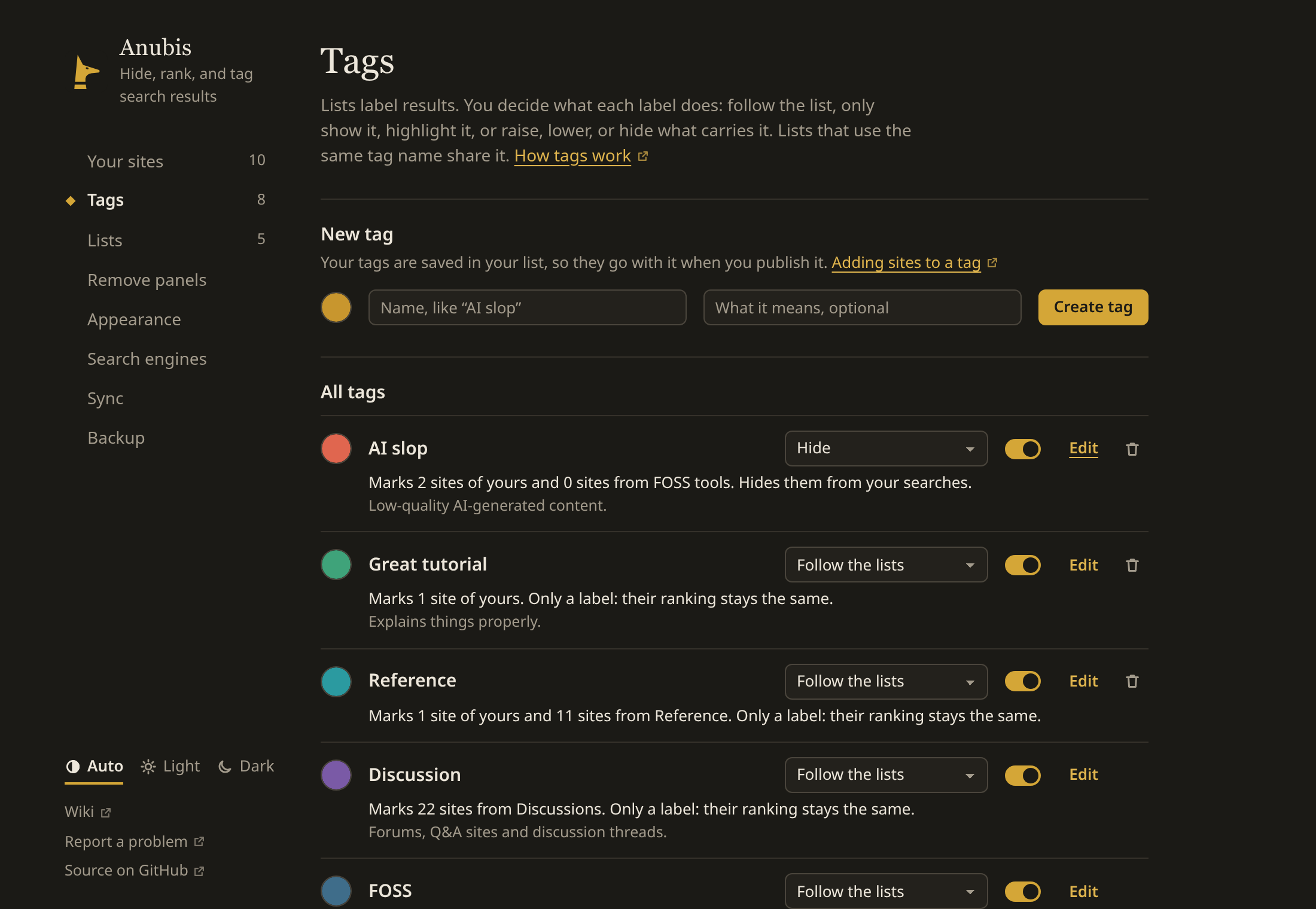
A list decides which sites get a tag. You decide what the tag does, in Settings → Tags:
| Choice | What happens to results with the tag |
|---|---|
| Follow the lists | Whatever the list says (the default). Most lists only label. |
| Label only | Show the label, never change the ranking. |
| Highlight | Give the result a faint background in the tag's colour. |
| Raise / Lower | Move the result five places up or down. |
| Hide | Hide the result, whichever list tagged it. |
Under each tag's name, one line says which sites carry it and what happens to them, for example "Marks 23 sites from Paywalls. Only a label: their ranking stays the same." The Paywalls list only labels; to lower paywalled sites, choose Lower for the tag.
Turn off Shown to keep a tag working without showing its label under results. Press a tag's colour to change it. To see every tag in grey on search pages, choose Plain in Settings → Appearance → Colours on search pages. Tags are then told apart by their names.
Tag sites yourself
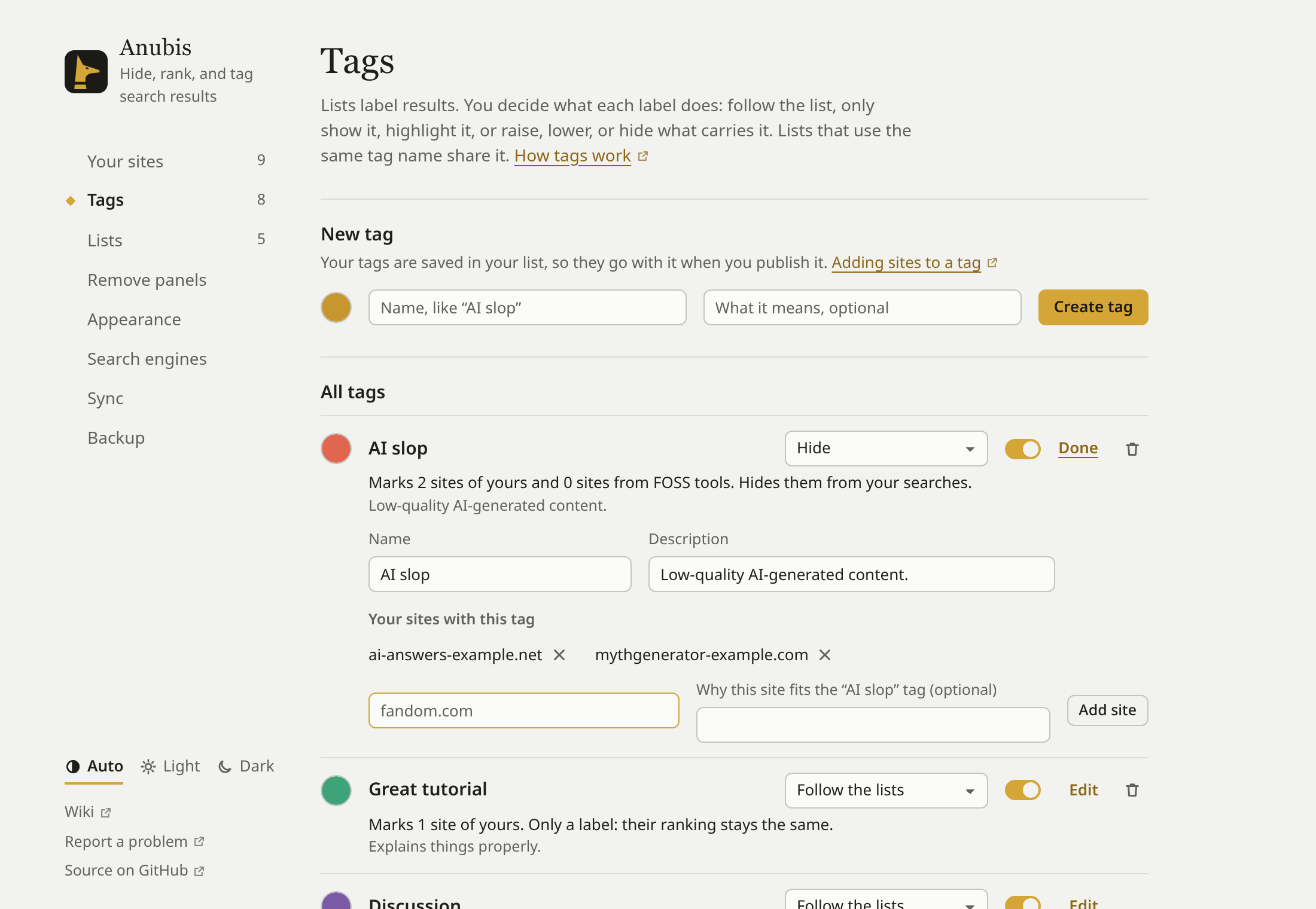
Press Edit beside a tag to open it. There you can:
- rename it, and give your own tags a description;
- see your sites with the tag, and press × to untag one;
- tag more sites: type one, or several separated by spaces or commas, and press Add site. You can optionally add one explanation for the site or sites; each note is saved with its site rule as a comment;
- see the first sites each of your lists gives the tag.
The ⚖ button on a search result tags that result's site the same way.
Several tags on one result
When a result carries several tags you've set to Raise or Lower, Anubis weighs them together: each Raise moves it five places up and each Lower five places down.
| Tags on the result | Where it goes |
|---|---|
| One Raise | Five places up |
| Three Raise | Fifteen places up |
| Two Raise and one Lower | Five places up, as if it had one Raise |
| One Raise and one Lower | Where the search engine put it |
A tag counts once, however many of your lists give it. A tag set to Hide still hides the result, whatever the others say. Why in the result's ⚖ menu shows each tag's part and where the result ends up ("raise it by 5 each for “Official docs” and “Reference” and lower it by 5 for “Paywall”, so it moves 5 places up").
A ranking you gave a site yourself beats any tag. If you raised a site, a tag set to Hide won't hide it.
Show only one tag
The summary above the results lists the tags on the page and how many results have each. Press one to show only those results; press Show all to go back. On a phone, press Details in the summary to see them.
Shared tags
Tags are identified by a short id like ai-slop. When two lists use the same id, you see one tag fed by both. That's how lists by different people can build a shared vocabulary; see the list format.