
Getting started
Install in Firefox
For the normal install, get Anubis from Firefox Add-ons. The latest Firefox build package and versioned packages are also available from GitHub Releases.
Other browsers
Chrome and other Chromium browsers are not yet in their browser stores. Download and extract the latest Chrome build from GitHub Releases, or build it from source. To build from source, you need Node.js 22.12 or newer:
git clone https://github.com/Bishop-V/anubis.git
cd anubis
npm install
npm run build          # Firefox development build
npm run build:chrome   # for Chrome, Edge, and other Chromium browsers
Load the development build or extracted package in your browser:
- Firefox: open
about:debugging, choose This Firefox, then Load Temporary Add-on, and pick.output/firefox-mv2/manifest.json. Firefox removes temporary add-ons when it closes. - Chrome: open
chrome://extensions, turn on Developer mode, choose Load unpacked, and pick.output/chrome-mv3or the extracted release package. - Edge: open
edge://extensions, turn on Developer mode, choose Load unpacked, and pick.output/chrome-mv3or the extracted release package.
When Anubis is installed, it opens a welcome tab with the steps for your browser to keep its button in the toolbar, a search to try, and the lists you start with.
Browsers put new extensions behind the Extensions button (a puzzle piece) next to the address bar. To keep Anubis's button in view:
- Chrome: press the puzzle piece, then the pin beside Anubis.
- Edge: press the puzzle piece, then the eye beside Anubis.
- Firefox: press the puzzle piece, then the gear beside Anubis, and choose Pin to Toolbar.
Search as usual
Search on any supported engine. Anubis starts with lists that tag official documentation, discussions, reference sites, paywalls, and FOSS online tools. The AI slop tag is available for sites you choose to tag yourself.
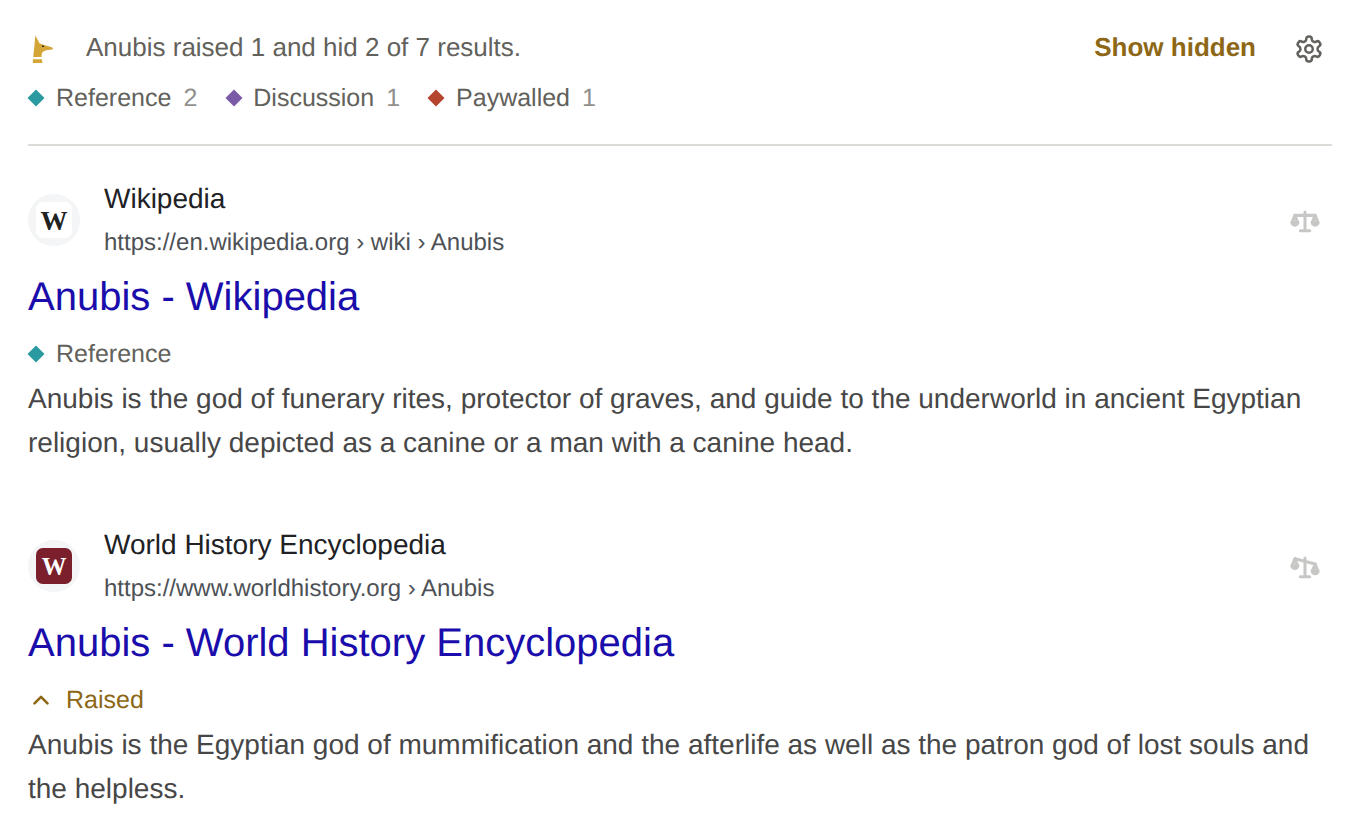
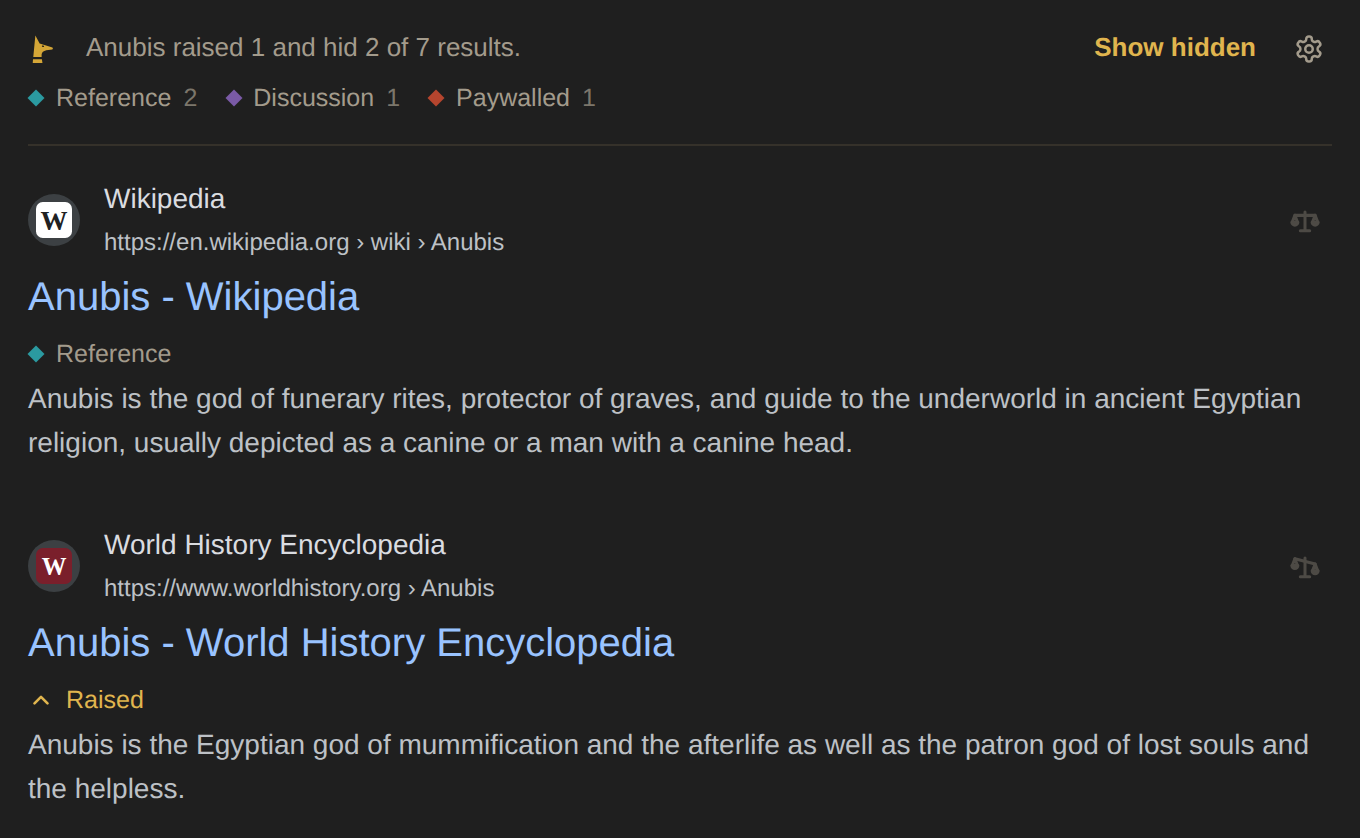
A one-line summary above the results says what Anubis did: which results it raised, lowered, or hid, and which tags are on the page. On a phone it says it in a few words ("Anubis changed 4 of 9 results."), and Details shows the rest.
Hide a site
Hover a result and press the ⚖ button at its top-right corner. In the menu, choose Hide.
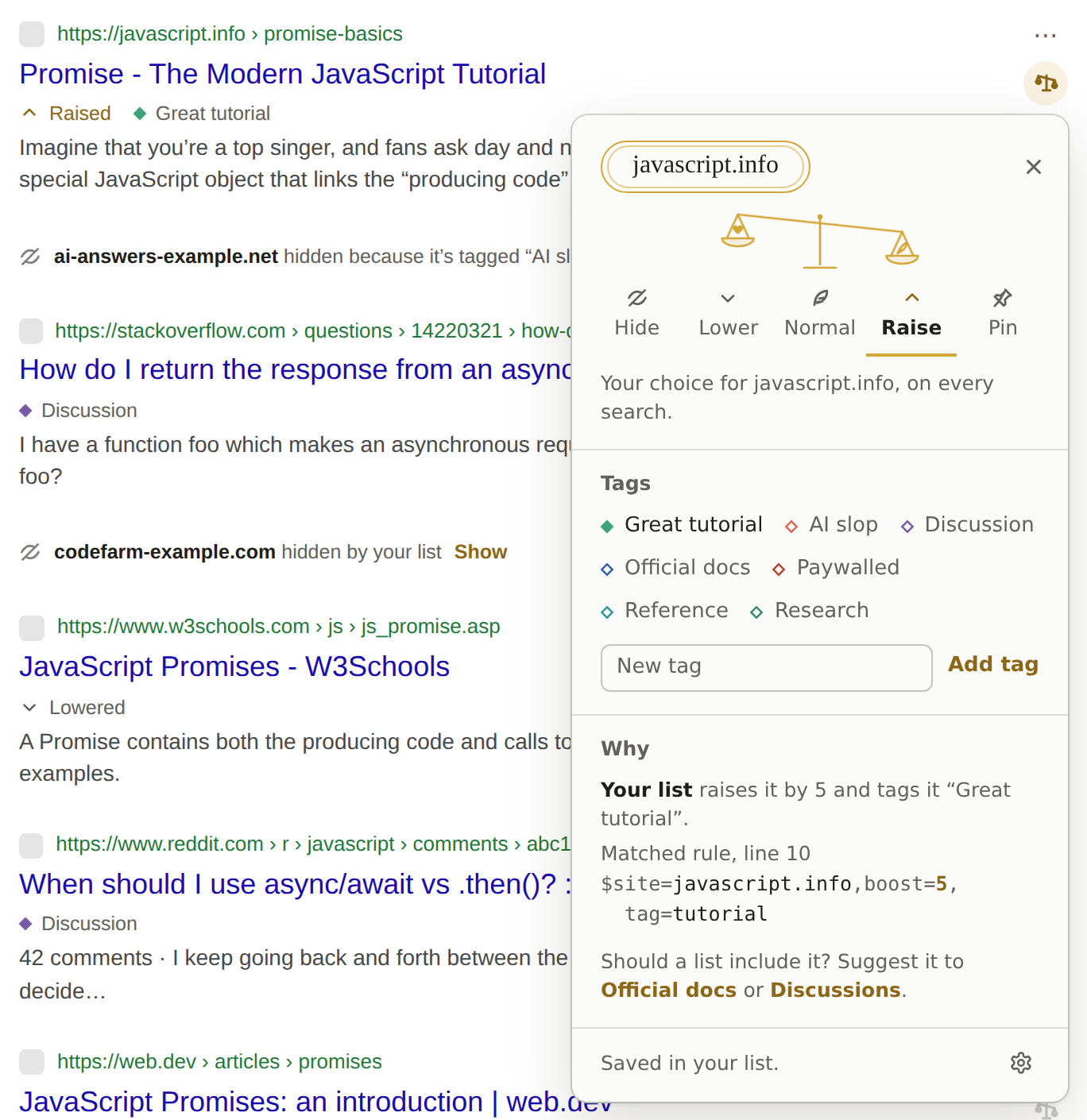
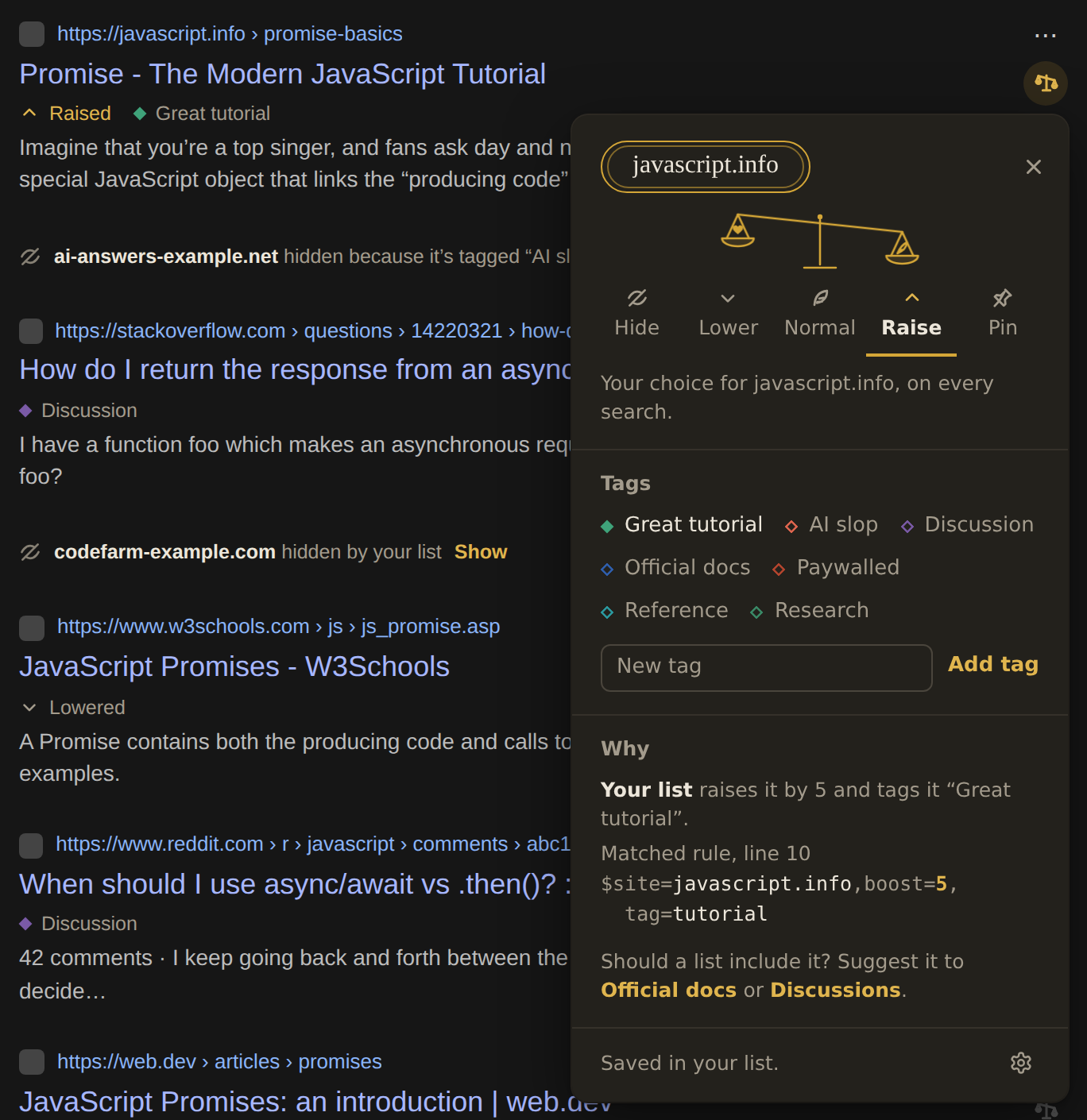
The result disappears, and so will every result from that site, on every search. The summary above the results counts what was hidden and says "Hid fandom.com." with an Undo button, which puts the site back as it was.
- Show hidden in the summary shows every hidden result on the page, faded, until you press it again or search for something else.
- To stop hiding the site, show it, open its menu, and choose Normal.
- To leave a line where each hidden result was, choose Collapse in Settings → Appearance → Hidden results:


Your choice applies to the whole site, including its subdomains. The name at the top of the menu picks how much of the site it covers: en.wikipedia.org or all of wikipedia.org.
Rank the site you're on
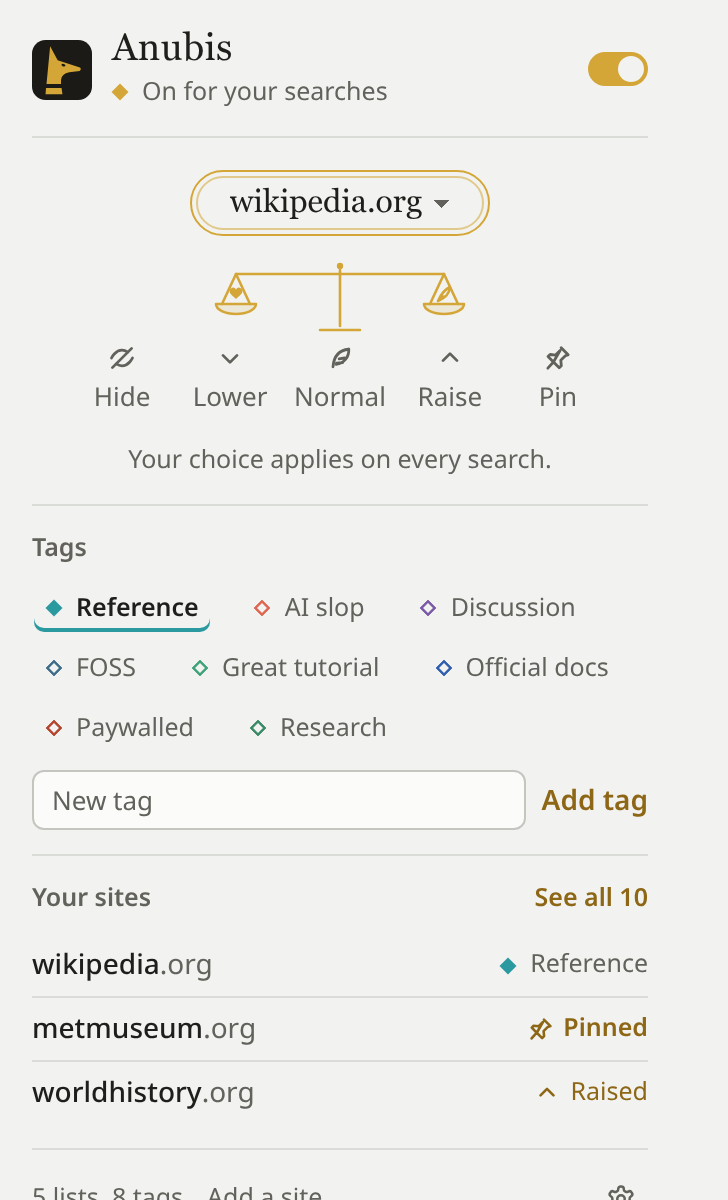
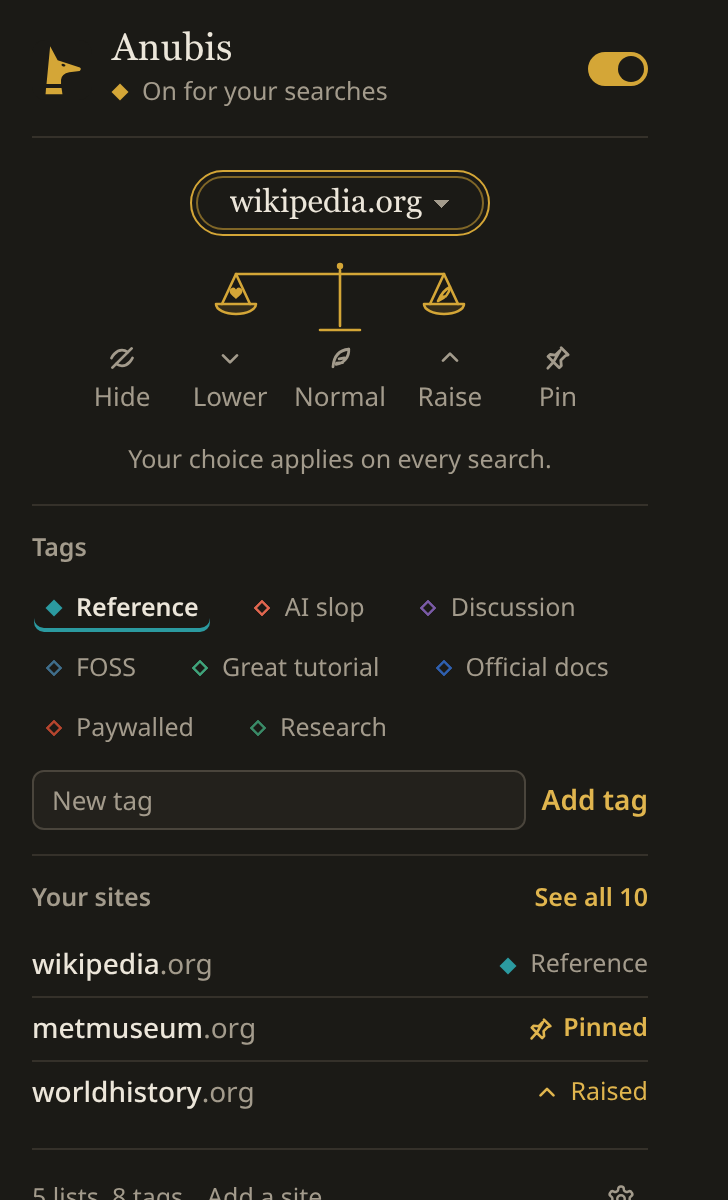
Press the Anubis icon in the toolbar while you're on any website. The popup shows the site's name over the balance: choose how its results should rank in future searches, and add or create tags under Tags. When the site's address has more than one part, like en.wikipedia.org, press the name to choose how much of it your choice covers.
On a search page the popup instead says what Anubis did to the results, with Show hidden, Load more results, and the page's tags, to show only the results with one of them. On any other page, Add a site takes a site's name and the ranking to give it.
Turn Anubis off
The switch in the toolbar popup turns Anubis off without uninstalling it. Its icon turns grey, and search pages are left as they are.
Keyboard shortcuts
- Alt+Shift+O turns Anubis on or off.
- Alt+Shift+H shows the hidden results on the page, and hides them again.
On a Mac, press Control instead of Alt. To change them, open chrome://extensions/shortcuts in Chrome, or in Firefox open about:addons, press the gear button, and choose Manage Extension Shortcuts. If another extension already uses one of these keys, your browser leaves that shortcut empty until you choose a key for it.
Help
Help in the toolbar popup opens this wiki. In Settings, each section links to its page here, and Wiki at the bottom of the sidebar opens the start.
Next
- Ranking sites: what Lower, Raise, and Pin do.
- Tags: tag sites and decide what tags do.
- Subscribing to lists: let other people's lists do the work.
- Removing panels: take AI answers and other panels off search pages.