
Syncing between computers
Anubis has no account or server of its own. It saves your things in your browser's sync storage, and your browser copies them to your other computers. To share between Firefox and Chrome as well, you can connect a storage service of your own.
What syncs
- Your list: every site you've ranked or tagged
- Settings
- Tag choices: what each tag does, and its name and colour
- Subscriptions: which lists you're subscribed to
The lists you subscribe to aren't copied between computers. Each computer downloads its own copy, from the same address.
Browser sync
This is on from the start, with nothing to set up in Anubis. Anubis can't see whether your browser's sync is on, though. If a change doesn't show up on your other computer, check these settings on both.
- Firefox: sign in to Firefox with your Mozilla account. In Firefox's settings, under Sync, make sure Add-ons is ticked: that also syncs add-ons' data. Firefox syncs about every 10 minutes. To sync straight away, choose Sync Now in the same place.
- Chrome: sign in to Chrome with sync on, and keep Extensions among the things it syncs (Chrome's settings, under You and Google).
Browser sync only reaches the same browser on your other computers. Firefox and Chrome don't sync with each other, and Firefox for Android doesn't sync add-on data at all.
Between browsers
To share between Firefox and Chrome, or with Firefox for Android, connect the same storage in each browser. It's optional, and nothing changes until you connect. Anubis works with any storage service that offers WebDAV, a standard way for apps to save files there. It keeps one file there, anubis-sync.json.
Get an address and a password
You need three things from the service: its WebDAV address, your user name, and a password for apps. Most services don't accept your usual password here. They let you make a separate one for each app instead, which you can take back without changing your own.
| Service | Address | Password |
|---|---|---|
| Koofr (10 GB free) | https://app.koofr.net/dav/Koofr | In Koofr, Preferences → Password → App passwords: make one. Your user name is your email address. |
| InfiniCLOUD (20 GB free) | Shown on your account page, under Apps Connection, once you turn it on | The same page shows the user name and password for apps. |
| Nextcloud | https://your-server/remote.php/dav/files/your-user-name/ | Settings → Security → Devices & sessions: create an app password. |
Other services and your own server work too, if they offer WebDAV over https://. Any folder will do: give its address, and Anubis puts its file there. An address ending in .json is used as the file itself.
Connect
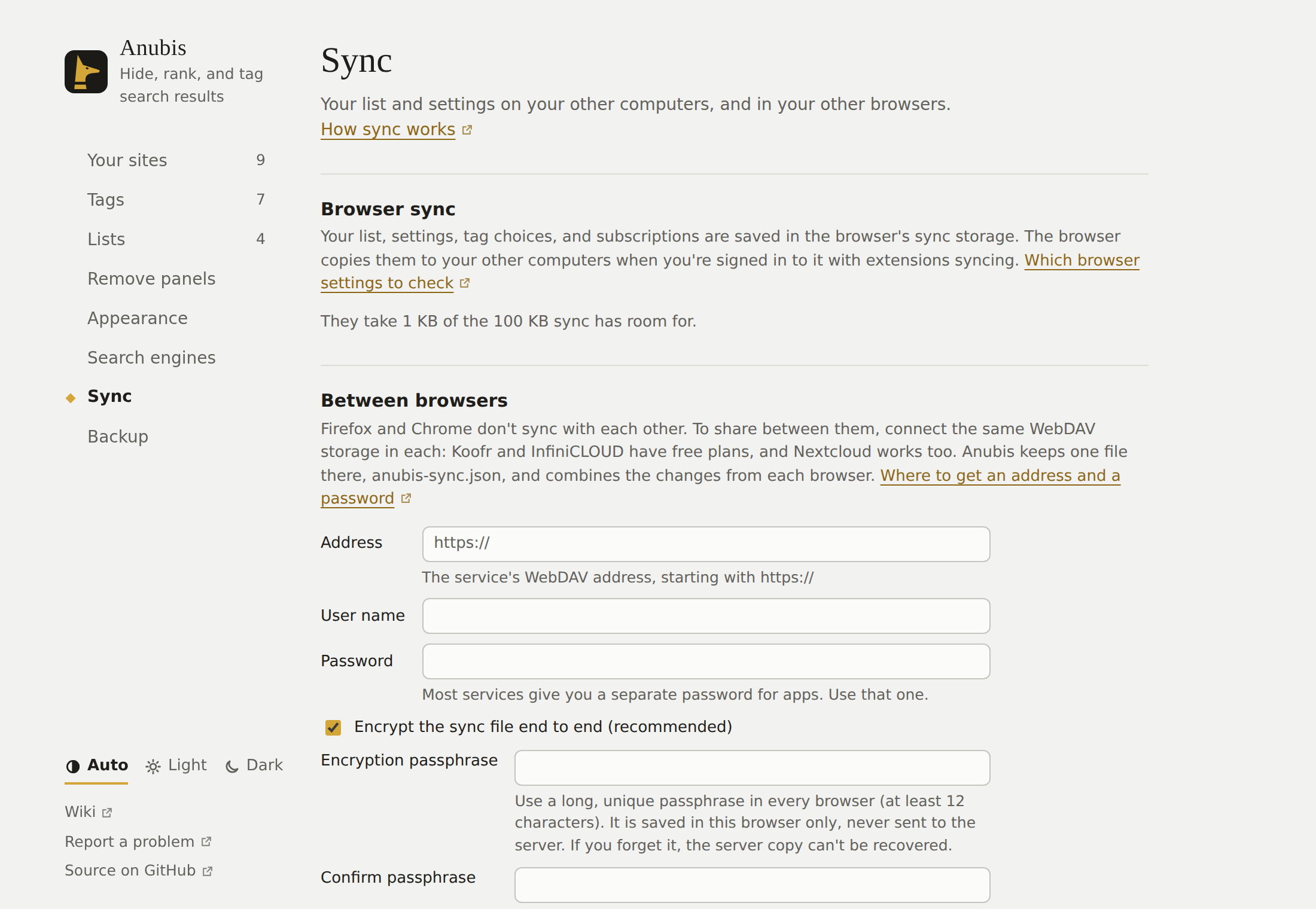
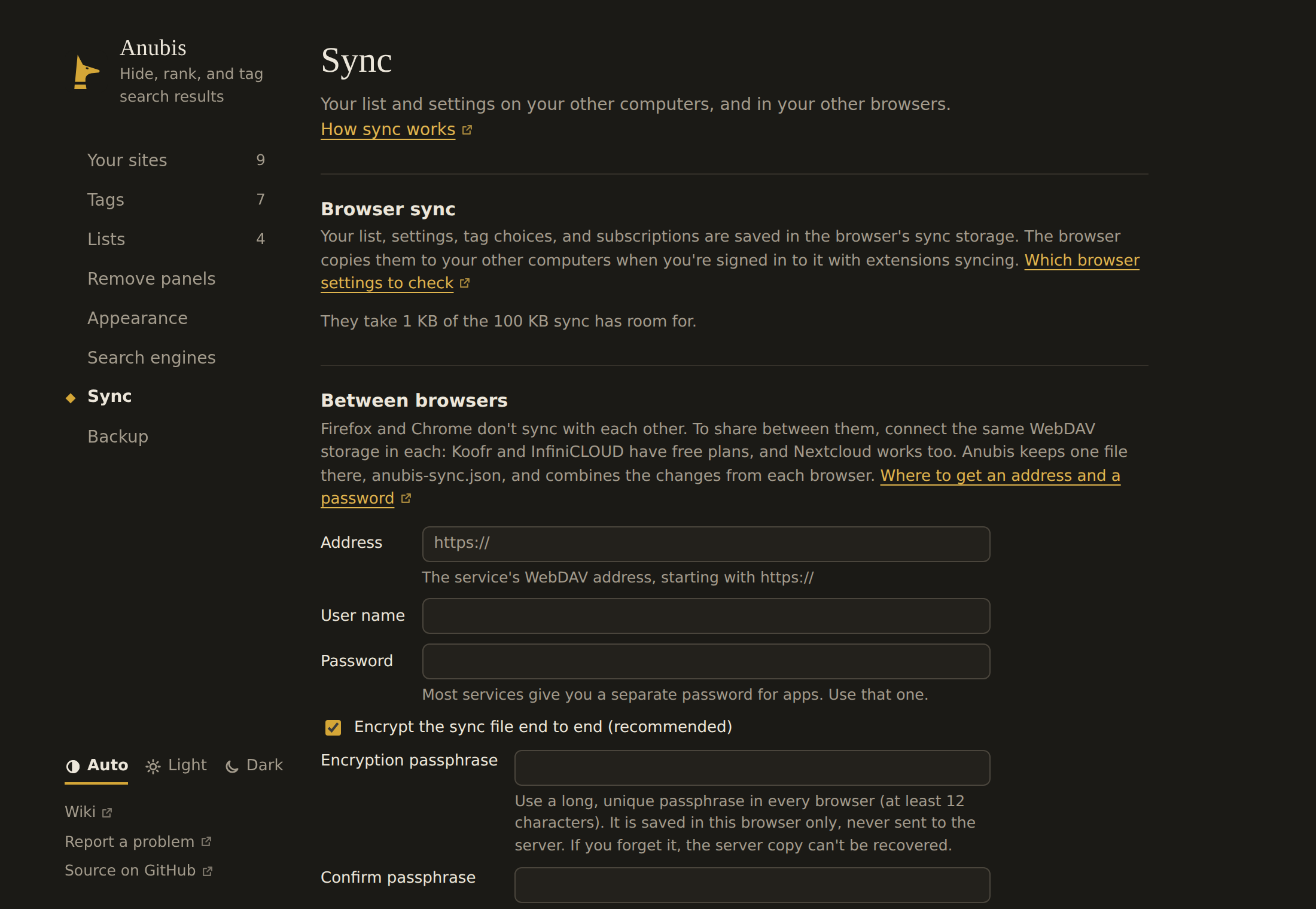
- Open Settings → Sync, and under Between browsers enter the address, your user name, and the password.
- Leave Encrypt the sync file end to end on, and choose a long, unique passphrase of at least 12 characters. Use the same passphrase in every browser. Anubis saves it in that browser's local extension storage so background sync can run; it is never sent to the server or copied by browser sync. Do not use your WebDAV login password.
- Press Connect. The browser asks you to let Anubis reach that server. Firefox also asks whether Anubis may send your list there.
- Do the same in your other browser with the same encryption passphrase.
Settings → Sync then shows when Anubis last synced, or what went wrong. Sync now syncs straight away.
Why this encryption
Anubis uses AES-256-GCM, a widely supported authenticated-encryption mode built into browsers' Web Crypto API. AES encrypts the sync file; GCM also checks that ciphertext has not been altered, and uses a fresh random nonce for each write. The 256-bit key is derived from your passphrase with PBKDF2-SHA-256 and a random salt, so Anubis does not send or store a separate key file. Using the browser's built-in cryptography avoids shipping a third-party crypto library.
This protects the file's contents, not the fact that you connect to the server. The server operator can still see connection metadata and can delete or replace the file; encryption does not prevent withholding or replaying an older encrypted copy. If you forget the passphrase, the server copy cannot be recovered; your data in each browser remains available. Choose a long, unique passphrase and keep a separate backup.
Anubis keeps the passphrase in that browser's local extension storage to sync automatically. It is not protected from someone who can access your browser profile or run code as you. WebDAV credentials are also saved locally and sent to the server to sign in.
Change the passphrase
In Settings → Sync, use Change encryption passphrase. Enter and confirm a new passphrase of at least 12 characters. Anubis first checks that the current passphrase decrypts the server file, then replaces it only if the server confirms nobody changed it in between. If that check or write fails, Anubis keeps the current passphrase and does not overwrite the file. Sync first and retry if the file changed during the operation.
If the connection drops while the server saves the new file, Anubis reads the file back. When the new passphrase opens it, Anubis saves the new passphrase. When Anubis can't reach the server to check, it keeps the old passphrase and says so. If the next sync then reports a wrong passphrase, enter the new one.
After a successful change, enter the new passphrase in every other browser before it syncs. A browser still using the old passphrase cannot read or change the encrypted file; it will report the passphrase error and leave the file alone.
New connections use encryption by default. To turn it off, uncheck the option when connecting; the server operator will then be able to read the file. Existing connections remain unencrypted until you enter and confirm a passphrase in Settings → Sync and choose Save passphrase and sync. An encrypted file requires the passphrase in every browser; Anubis will not overwrite it if a passphrase is missing or wrong. Plain backups exported from Settings are not encrypted by this feature.
When it syncs
- A few seconds after you change something
- When the browser starts
- When you search, at most every 5 minutes
Changes from both browsers
Anubis combines the changes from each browser, so nothing is lost when you use both:
- A site you hide in Firefox and a site you tag in Chrome both stay.
- If you raise a site in one browser and tag it in the other, it ends up raised and tagged.
- If both browsers change the same thing before they've synced, such as the same site's ranking or the same setting, the browser that syncs last wins.
The first time a browser connects, it takes everything from the file. Sites and settings you changed in that browser before connecting are kept too, unless the file changed the same ones.
Disconnect
Disconnect in Settings → Sync stops syncing in that browser. Your list and settings stay in the browser, and the file stays on the server. Delete the file there if you want it gone.
Limits
- Size: browser sync holds about 100 KB for each add-on. Anubis compresses your list before saving it, so about 10,000 sites fit. Settings → Sync shows how much room they take. If your list outgrows it, browser sync keeps it on that computer only and Settings says so; settings, tag choices, and subscriptions still sync. Syncing through a server has no such limit.
- Lists from other hosts: if you subscribe to a list that isn't on GitHub, each browser asks for permission to download it. After syncing, press that list's Update now button (↻) in Settings → Lists in the other browser to allow it there.
- Moving just once: you can also export a backup and restore it in the other browser. The sync file is in the same format, so Restore backup reads it too.
Privacy
Browser sync goes through your browser account, like your bookmarks. Anubis never sees it.
When you connect a server, your list, settings, tag choices, and subscriptions go to that server and nowhere else. With end-to-end encryption enabled, the server cannot read the sync file; without it, the server operator can. Your WebDAV user name and password are saved in that browser, sent to the server to sign in, and never put in browser sync or the sync file. The encryption passphrase is saved locally in each browser where you set it, and is never sent to the server. See Privacy and permissions.